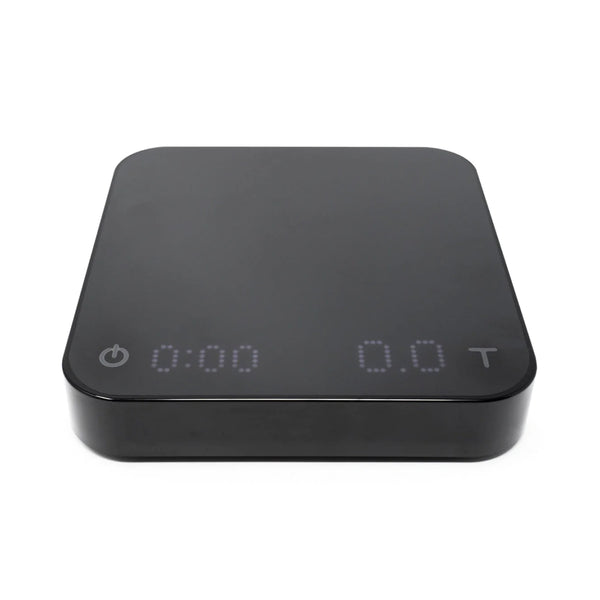
Understanding the Nine Modes
The Pearl Model S has nine modes. With the scale on, press and hold the Power button to cycle through active modes. Only modes enabled in the Settings menu will appear in the cycle. By default, Weighing Only Mode and Dual Display Mode are on; Brewguide Mode is on; all others are off and must be enabled in Settings before they appear.
Mode 1 — Weighing Only Mode
Displays weight only (0.1g readability). Use for dosing coffee, measuring water, or any task not requiring a timer. Tap Tare to zero. Press and hold Tare to switch between grams and ounces.
Mode 2 — Dual Display Mode
Displays timer (left) and weight (right) simultaneously. Tap Power to start, stop, or reset the timer manually. Tap Tare to zero weight. The timer auto-stops when the container is removed for the number of seconds set in the Timer Auto Stop on Cup Removal setting (default: 10 seconds).
Mode 3 — Pour-Over Auto-Start Timer Mode
Designed for pour-over brewing. The timer starts automatically the moment the scale detects the first flow of water, and stops when the brewing vessel is removed. When the vessel is removed, the display flashes the final beverage weight. The mode auto-resets after the Timer Auto Reset delay (default: 20 seconds). Enable this mode in Settings before it appears in the mode cycle.
Mode 4 — Portafilter Mode
Place an empty portafilter on the scale — it auto-tares the portafilter weight and displays [ 0.0 ]. Remove the portafilter once the loading icon disappears, fill with ground coffee, then replace to read the dose weight. The mode auto-resets 15 seconds after portafilter removal (adjustable). Enable in Settings.
Mode 5 — Espresso Mode
Place a cup (2g or heavier) on the scale — it auto-tares. When espresso flow is detected, the timer starts automatically and stops when flow stops. When the cup is removed, the display flashes between the beverage weight and the vessel weight. If idle for 10 seconds with no weight or flow detected, the mode resets automatically. Enable in Settings.
Mode 6 — Flowrate Mode
Displays timer, weight, and real-time flow rate (in g/s) simultaneously. Designed for pour-over brewing where visualizing pour consistency matters. Tap Power to start/stop the timer. Enable in Settings.
Mode 7 — Flowrate Practice Mode
A dedicated practice tool for improving pour consistency. Displays current flow rate on the left and a stability indicator bar on the right — each dot represents 0.5 g/s. Use this mode to train a steady, controlled pour. Enable in Settings.
Mode 8 — Brewguide Mode
A step-by-step interactive brewing guide. Use the Acaia Brewguide app to scan a QR code on a coffee bag or browse guides from roasters worldwide, then upload a recipe to the Pearl Model S. The scale walks you through each brew step on the display. Tap Power to redisplay the current instruction. Press and hold Tare to advance to the next step. Brewguide Mode only operates in grams.
Mode 9 — Countdown Mode
A customizable countdown timer with 3 adjustable presets and 30+ ringtone options. Press and hold Tare to set the timer duration; tap Tare to increase the value. Tap Power to cycle between presets. Press Tare to start/stop the active countdown. The timer continues counting in negative values after zero by default (adjustable). Enable in Settings.
Sound Notifications
The Pearl Model S can announce weight and time audibly. In Settings, set Timer Notification Sound to Voice (reads time every 10 seconds) or Sound (beeps at 10s and 60s intervals). Set Weight Notification Sound to Voice (announces weight when stable and every 20g during brewing) or Sound (beeps every 20g). Both are Off by default. Adjust volume (1–5) in Settings.
Settings Menu
With the scale off, press and hold the Power button until the display shows [ acaia ] then [ Settings ]. Release to enter. Tap Tare to navigate, press and hold Tare to enter a setting and confirm a selection. Double-tap Power to exit Settings and return to modes. Key settings include Brightness, Sound Notifications, Volume, Default Unit, individual mode on/off toggles, Sleep Timer, Battery Saving, Weighing Filter, Zero Tracking, Weighing Resolution, and Bluetooth. To factory reset: navigate to Reset to Default → Yes.